
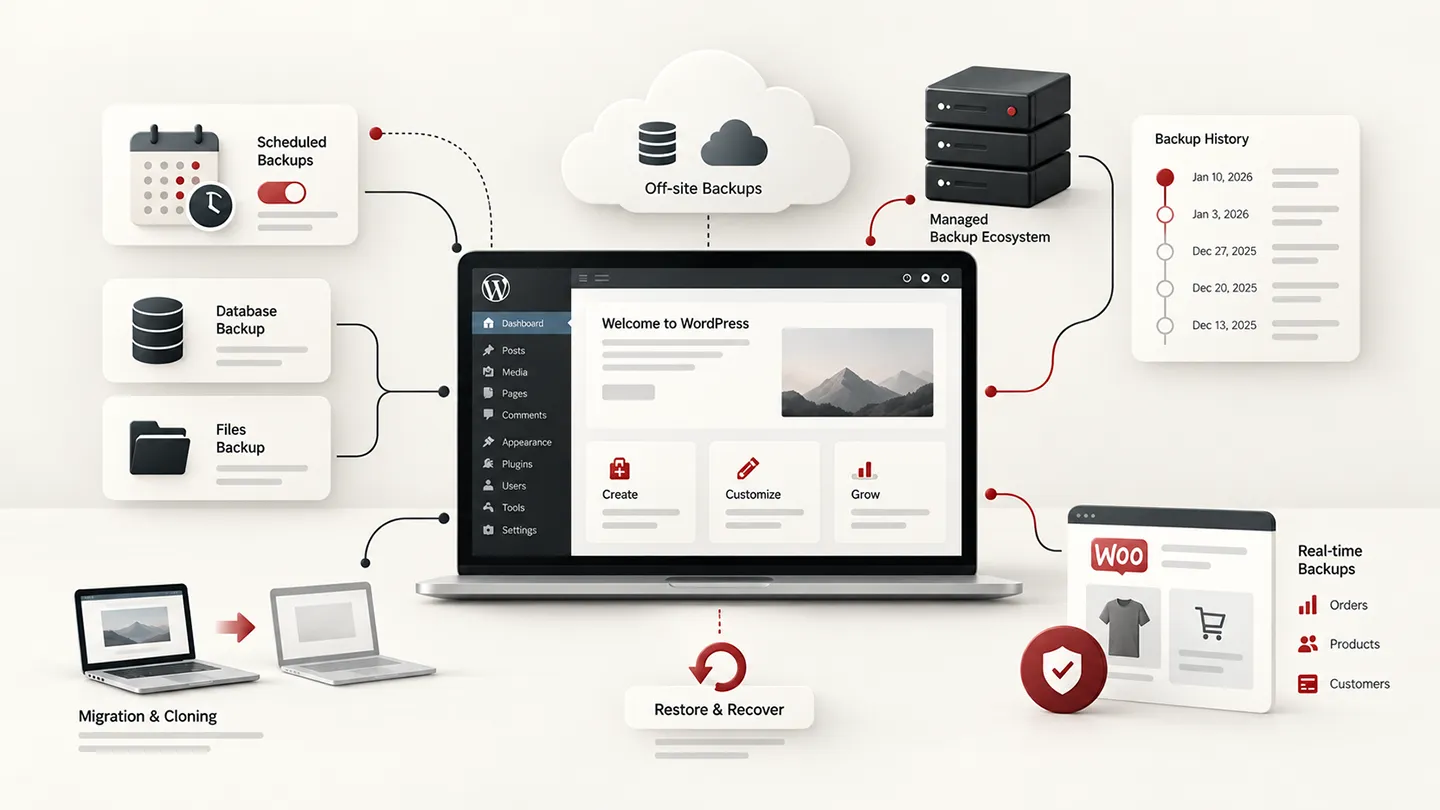
A backup plugin is easy to underestimate because, when everything is working, it does almost nothing visible.
That is exactly why the category matters.
You usually discover whether your backup system was good after a failed update, broken migration, compromised site, hosting failure, accidental deletion, or database problem. At that point, the question is no longer whether the plugin had a nice dashboard. The question is whether the backup exists, whether it is recent enough, whether it is stored somewhere independent from the failed server, and whether you can actually restore it.
For most normal WordPress sites, our default choice is UpdraftPlus.
We use it in real WordPress work for scheduled backups sent off-site to cloud storage, including Dropbox. It is mature, widely used, easy to understand, and its free version already covers the backup workflow many small and medium sites genuinely need.
We also use Duplicator, but for a different job: moving a WordPress site from one location or server to another. That is an important distinction. A tool can technically do both backup and migration while still being much stronger for one workflow than the other.
We have also used Snapshot from WPMU DEV. It is a capable managed backup option, especially if you already work inside the WPMU DEV Hub, but that ecosystem dependency is also its main drawback for us. The fuller backup experience is tied to a WPMU DEV account, storage allocation, and paid plan or add-ons rather than being a simple standalone free backup plugin.
For stores and sites where every order or database change matters, daily scheduled backups may not be enough. That is where services such as BlogVault and Jetpack VaultPress Backup become more interesting because real-time or near-real-time off-site backups can reduce the amount of recent data lost during recovery.
Last researched: 22 September 2026.
The Short Version
| Plugin | Best for | Current pricing at review | Adoption / maturity signal |
|---|---|---|---|
| UpdraftPlus | Best overall for scheduled cloud backups | Free; Premium from $70/year for 2 sites | 3+ million active installs |
| BlogVault | Best for serious WooCommerce and managed off-site recovery | From $99/year; WooCommerce plan $499/year | 80,000+ active installs |
| Jetpack VaultPress Backup | Best simple real-time cloud backup service | $9.95/month regular price, billed yearly | Dedicated backup plugin 20,000+ installs |
| Duplicator | Best for migration-first backup workflows | Free; Pro from $79/year regular price | 1+ million active installs |
| Snapshot | Best for sites already managed through WPMU DEV | WPMU DEV account required; full capabilities depend on plan/storage | WPMU DEV managed backup ecosystem |
| WPvivid | Best feature-rich free alternative | Free; Pro from $49/year for 2 sites | 900,000+ active installs |
| BackWPup | Best mature alternative for flexible backup jobs | Free; Pro from $49/year for 2 sites | 400,000+ active installs |
If we were setting up a typical brochure site, content site, or small business WordPress installation today, we would usually start with UpdraftPlus + off-site storage.
For a busy WooCommerce store where losing several hours of orders would be unacceptable, we would look much more closely at BlogVault or Jetpack VaultPress Backup.
For moving a site between hosts or domains, we would reach for Duplicator before thinking of it primarily as our long-term backup system.
What Makes a WordPress Backup Actually Useful?
A successful backup notification is not enough.
A useful backup strategy answers five questions:
- Where is the backup stored?
- How often is it created?
- How many historical copies are retained?
- How quickly can the site be restored?
- Have you ever verified that the restore path works?
The first question is particularly important.
A backup stored only on the same hosting account as the live site is better than no backup, but it is not strong disaster recovery.
If the hosting account is deleted, corrupted, compromised, suspended, or inaccessible, the live site and its backups may disappear together.
That is why we prefer off-site storage such as:
- Dropbox,
- Google Drive,
- Amazon S3,
- Backblaze B2,
- OneDrive,
- SFTP on a separate server,
- dedicated backup-provider cloud storage.
The same principle applies to hosting-provider backups.
Good managed hosting backups are valuable, but for an important site we still prefer having at least one recovery path that does not depend on the same hosting provider remaining available.
For security-sensitive sites, this complements the layered approach we described in our best WordPress security plugins in 2026 guide.
1. UpdraftPlus — Best Overall for Scheduled Cloud Backups
UpdraftPlus remains our default recommendation for most WordPress sites.
It currently has 3+ million active installations, and the free plugin supports scheduled or manual backups with remote storage options including Dropbox, Google Drive, Amazon S3-compatible storage, Rackspace Cloud, FTP, DreamObjects, OpenStack Swift, and email.
That is already enough for a very practical backup setup.
Our hands-on experience
This is one of the backup plugins we actually use.
Our normal use is straightforward:
schedule the backups and send them off-site to cloud storage, including Dropbox.
That sounds basic, but basic is good in a backup product.
A backup process should not require attention every day. Once configured correctly, it should quietly create copies on schedule and put them somewhere independent from the WordPress server.
For ordinary WordPress sites, that is the workflow we want.
We do not choose UpdraftPlus because it has the most exciting interface. We choose it because the core model is easy to understand and has worked well enough across a very large WordPress install base that it has become one of the standard tools in the category.
The free version is genuinely useful
Many WordPress plugins use the free version mainly as a sales funnel.
UpdraftPlus Free is more useful than that.
For a normal site, you can already:
- schedule database and file backups,
- send them to major cloud-storage providers,
- retain multiple backups,
- restore from WordPress,
- run manual backups before risky work.
That covers the most important backup habit: automatic copies stored away from the production server.
What Premium adds
UpdraftPlus Premium currently starts at $70/year for up to two sites.
The paid version adds features such as:
- incremental backups,
- automatic backups before updates,
- additional remote-storage destinations,
- multiple storage destinations,
- more granular restores,
- database encryption,
- advanced scheduling,
- improved migration features,
- premium support.
For freelancers and agencies, current plans scale to 10, 35, or unlimited sites.
What we like
The strongest points are:
- huge production history,
- useful free version,
- broad cloud-storage support,
- straightforward scheduled backups,
- separate schedules for files and databases,
- restore controls inside WordPress,
- mature documentation,
- pricing that remains reasonable for multiple sites.
What we do not like
UpdraftPlus is still fundamentally a WordPress-plugin-driven backup system.
That means large sites, slow hosting, limited PHP resources, or unusual server configurations can make backup jobs more complicated.
Premium incremental backups help, but if we were protecting a very busy store where database changes happen continuously, we would rather evaluate a backup service designed around real-time change capture than simply increase the frequency of full scheduled backups.
Best for: most WordPress sites that want reliable scheduled backups to Dropbox, Google Drive, S3, or another off-site destination.
Our verdict: the backup plugin we would install first on a normal WordPress site.
2. BlogVault — Best for Serious WooCommerce and Managed Off-Site Recovery
BlogVault is a different type of product.
Instead of relying primarily on WordPress to process and store backups locally, BlogVault runs much of the backup and restore workflow through its own infrastructure.
Its WordPress plugin currently has 80,000+ active installations.
That number is much smaller than UpdraftPlus, but the product is aimed more toward managed backup, staging, migration, and recovery than toward being a purely local WordPress plugin.
Why BlogVault is especially interesting for WooCommerce
A brochure site may change twice per month.
A WooCommerce store can change every few minutes.
New data may include:
- orders,
- subscriptions,
- customers,
- stock changes,
- refunds,
- product updates,
- coupon usage,
- payment state,
- account changes.
If a store backs up once every 24 hours and fails just before the next backup, the restore point may be nearly a day old.
That could mean restoring the site while losing valid orders that arrived since the last snapshot.
BlogVault specifically offers real-time backups for WooCommerce, designed to capture orders and store changes as they happen.
Its WooCommerce plan currently includes real-time backups and up to 365 days of backup history.
Current pricing
The Personal plan currently starts at $99/year for one site and includes daily backups, 30-day retention, off-site storage, restore, migration, and staging.
Higher plans increase backup frequency and retention.
The dedicated WooCommerce plan is significantly more expensive at $499/year for one site, but that pricing makes more sense when the store's order database is worth protecting continuously.
Why the architecture matters
BlogVault says backup processing and restore work is performed on its own infrastructure, reducing the amount of heavy work performed by the live WordPress server.
That is attractive for:
- larger websites,
- WooCommerce stores,
- constrained hosting,
- sites where backups should not compete heavily with visitors for resources.
It also gives the product an emergency-recovery advantage because backup management is not entirely dependent on wp-admin still functioning normally.
The downside
Cost.
For a brochure site that changes once per week, paying hundreds of dollars per year for advanced backup infrastructure can be excessive.
We have not used BlogVault as our normal backup system in the same way we use UpdraftPlus, so this recommendation is based on its current architecture, product documentation, WooCommerce support, retention model, and recovery features rather than equivalent hands-on usage.
Best for: WooCommerce stores and business-critical WordPress sites where minimizing recent data loss is worth paying more for.
3. Jetpack VaultPress Backup — Best Simple Real-Time Cloud Backup Service
Jetpack VaultPress Backup is probably the most straightforward option here for someone who does not want to think much about backup configuration.
The current standalone backup plan provides:
- real-time cloud backups,
- one-click restores,
- an activity log,
- 30 days of archive history,
- 10 GB of included storage.
The regular price is currently $9.95/month billed yearly, with introductory discounts commonly shown for the first year.
Why it is different from scheduled backup plugins
A traditional scheduled backup takes a snapshot at a point in time.
VaultPress Backup continuously records site changes.
That makes the model especially useful when the database changes frequently.
For a WooCommerce store, membership site, community, or frequently edited publication, a backup from 2 AM may be too old by 4 PM.
Real-time backup reduces that recovery gap.
Activity history is underrated
One of VaultPress Backup's useful characteristics is the connection between backups and the activity log.
If you know roughly when a problem occurred, it is easier to reason about which restore point you actually want.
That matters more than simply having dozens of anonymous ZIP files with timestamps.
The trade-offs
VaultPress is a hosted service, so you are buying into Automattic's backup infrastructure rather than managing your own Dropbox or S3 destination.
That simplicity is a benefit for many site owners.
Developers who prefer direct control over backup files and storage providers may prefer UpdraftPlus, Duplicator, or WPvivid.
Storage also starts at 10 GB. Additional storage is available, but larger sites need to account for that cost.
We have not used VaultPress Backup as our standard backup workflow, so this is a research-based recommendation.
Best for: site owners who want a low-maintenance real-time backup service with easy restores rather than managing backup archives themselves.
4. Duplicator — Best for Migration-First Backup Workflows
Duplicator currently has 1+ million active installations and a 4.9/5 WordPress.org rating.
It is a capable backup plugin.
But the reason it is on our shortlist is more specific:
we use Duplicator when moving a website from one place to another.
That can mean:
- moving to a new host,
- moving between servers,
- replacing a staging installation,
- changing domains,
- cloning a site into another environment.
Our hands-on experience
Duplicator's packaging-and-installer workflow is particularly useful for migrations.
Instead of thinking only in terms of "restore yesterday's backup," you can think of the site as a portable package that needs to be reconstructed in another environment.
That is a different mental model from UpdraftPlus.
For us:
- UpdraftPlus is the routine scheduled-backup tool.
- Duplicator is the migration tool we reach for when a site needs to move.
There is overlap, but we would not pretend we use them interchangeably.
Duplicator has become a stronger backup product
The current free plugin now supports much more than older versions of Duplicator did.
Its WordPress.org listing includes:
- full site backups,
- encrypted archives,
- one-click restore,
- cloud backup support,
- migration and cloning.
Duplicator Pro adds scheduled backups, recovery points, additional cloud-storage integrations, advanced migration features, and larger-site tooling.
Current regular pricing starts at $79/year for up to two sites, before promotional discounts.
Why we still classify it as migration-first
A great migration tool and a great backup system overlap technically, but the priorities are different.
A migration product needs to handle:
- path changes,
- domain replacement,
- database search-and-replace,
- different hosting environments,
- package extraction,
- server-to-server movement.
A long-term backup product needs to make recurring protection boring:
- schedule,
- retention,
- off-site storage,
- restore history,
- monitoring,
- low operational effort.
Duplicator can do both, but our practical reason for keeping it installed is usually the first group.
Best for: developers and site owners who regularly move, clone, or rebuild WordPress sites and also want the same tool to create backups.
5. Snapshot — Best for Sites Already Managed Through WPMU DEV
Snapshot is another backup system we have used in real WordPress work.
It makes the most sense when the site is already connected to the WPMU DEV Hub and the rest of that ecosystem is part of your workflow.
Snapshot 4 uses incremental backups, supports scheduled and manual backups, stores backups in WPMU DEV cloud storage, and can also copy backups to third-party destinations including:
- Amazon S3 and S3-compatible storage,
- Google Drive,
- Dropbox,
- OneDrive,
- FTP / SFTP,
- Azure.
Current WPMU DEV documentation says Snapshot backups are retained for 50 days, with storage tied to the WPMU DEV account's Snapshot allocation.
Our hands-on experience
We have used Snapshot as a backup solution rather than only researching it for this article.
The attraction is convenience.
If a site is already managed through WPMU DEV, backup status, schedules, storage, and restores fit naturally into the same Hub used for the rest of the site's management.
That can be useful for agency work because backups are not treated as an isolated plugin screen on every individual WordPress installation.
The subscription / ecosystem trade-off
This is also the reason Snapshot is not our default recommendation.
Snapshot is built around the WPMU DEV account and API. The site needs to be connected to the Hub, and the useful storage and scheduling model is tied to that ecosystem.
Current WPMU DEV documentation does allow Free Hub users to use Snapshot with restrictions — including only monthly scheduled backups and a smaller storage allocation — so it is no longer accurate to describe the plugin as completely inaccessible without paying.
But in practical terms, the full Snapshot experience is a subscription/ecosystem product.
That makes it less attractive if all you want is:
install one backup plugin, connect Dropbox, and forget about the vendor's wider platform.
That is one reason we still prefer UpdraftPlus for a normal standalone WordPress site.
A few practical limitations
Snapshot is specifically a backup product, not WPMU DEV's migration tool.
WPMU DEV's own documentation notes that restoring a Snapshot to a different domain/server may still require manual URL changes, and recommends its separate migration tooling when migration is the main task.
Also, third-party destination copies are routed through WPMU DEV cloud storage first rather than bypassing WPMU DEV entirely.
That is not necessarily a problem, but it is worth understanding if the reason you chose a third-party destination was to avoid depending on the provider's cloud.
Best for: developers and agencies already using WPMU DEV who want backups integrated into the same Hub and management workflow.
Our verdict: a good product when you are already paying for or committed to the WPMU DEV ecosystem; harder to justify as a standalone backup choice when UpdraftPlus and WPvivid can cover simpler workflows without the same platform dependency.
6. WPvivid — Best Feature-Rich Free Alternative
WPvivid Backup & Migration has become one of the strongest free competitors in this category.
It currently has 900,000+ active installations and is being updated actively in 2026.
The free version supports:
- manual backups,
- scheduled backups,
- restore,
- migration,
- Dropbox,
- Google Drive,
- Amazon S3,
- Microsoft OneDrive,
- DigitalOcean Spaces,
- FTP,
- SFTP,
- basic retention controls,
- staging.
That is a substantial free feature set.
Why it stands out
The most interesting thing about WPvivid is how much of the useful backup workflow remains available without upgrading.
Cloud storage is not restricted only to the paid version, and migration is also available for free.
For a user who wants a single tool for:
backup + migration + staging + remote storage
without paying immediately, WPvivid is probably the alternative we would investigate first.
Current pricing
WPvivid Pro currently starts at $49/year for two sites.
It also still offers lifetime pricing, starting at $99 one-time for two sites, which is unusual among mature WordPress backup products.
Pro adds features such as:
- incremental backups,
- advanced scheduling,
- selective backups,
- more advanced retention,
- backup-before-update workflows,
- additional migration options,
- multisite functionality.
Why it is below UpdraftPlus for us
This is not because WPvivid's feature list is weaker.
It is because we already know UpdraftPlus operationally, and backup software is one area where familiarity has real value.
When something has gone wrong, knowing exactly where the backup is, how the plugin stores its archives, and how the restore workflow behaves matters more than gaining three extra dashboard options.
That said, WPvivid's current free feature set is strong enough that we would be comfortable evaluating it for a new site.
Best for: users who want a very capable free combination of backups, cloud storage, migration, and staging.
7. BackWPup — Best Mature Alternative for Flexible Backup Jobs
BackWPup has been around for years and currently has 400,000+ active installations.
The plugin was acquired into the WP Media ecosystem and has been receiving frequent updates through 2026.
Its free version can create complete database and file backups and send the same backup job to multiple destinations.
Current free storage options include providers such as:
- Dropbox,
- FTP,
- Microsoft Azure,
- Amazon S3-compatible storage,
- SugarSync,
- Rackspace Cloud Files,
- local server storage.
Why we still consider it
BackWPup is particularly flexible when you want to define backup jobs around:
what gets backed up + when it runs + where each copy goes.
The ability to send the same job to multiple destinations is useful if you want redundancy rather than relying on a single cloud provider.
The product also supports hourly, daily, weekly, and monthly schedules.
Current Pro pricing
BackWPup Pro currently starts at $49/year for two domains.
The paid version adds premium storage options, encryption, migration, its restore application, and priority support.
The 2026 picture
The product has changed substantially in recent versions and is being actively developed.
Its changelog includes many backup and restore fixes, cloud-storage improvements, migration work, and security fixes.
That active maintenance is a positive sign, although we would still stage-test any backup product before trusting an important site to it.
We do not currently use BackWPup in our own normal workflow, so this recommendation is based on current product research rather than hands-on experience.
Best for: users who want a mature, configurable backup system with multiple simultaneous destinations and a strong free core.
UpdraftPlus vs Duplicator: They Solve Different Problems for Us
These are the two backup-category plugins we have direct practical experience with, but we use them differently.
UpdraftPlus
Our use case is ongoing protection.
We configure scheduled backups and send copies to cloud storage such as Dropbox.
The important qualities are:
- automation,
- remote storage,
- history,
- predictable backup jobs.
Duplicator
Our use case is primarily moving a website.
We use it when a WordPress installation needs to go from one location to another.
The important qualities are:
- packaging,
- migration,
- installer workflow,
- domain/path changes,
- rebuilding on a new host.
Could you use Duplicator as the main backup system? Yes.
Could you use UpdraftPlus for migration? Yes.
But feature overlap does not mean both products are equally natural for every workflow.
We prefer choosing the tool around the job rather than trying to standardize on one plugin for everything.
Daily Backups Are Not Enough for Every Website
Backup frequency should match how quickly valuable data changes.
For a five-page company website that receives a contact form submission twice per week, one daily backup may already be more than sufficient.
For a WooCommerce store doing 100 orders per day, the same schedule can be unacceptable.
If the store fails at 11 PM and the last database backup was at midnight the previous night, restoring it could effectively roll the database backward by almost 24 hours.
That can affect:
- orders,
- customers,
- subscription renewals,
- inventory,
- refunds,
- order notes,
- coupon usage,
- account changes.
For transactional sites, we would consider:
- real-time backups,
- high-frequency incremental backups,
- host-level database snapshots,
- or a combination of layers.
This is where BlogVault and Jetpack VaultPress become much easier to justify despite costing more than a conventional scheduled-backup plugin.
Your Backup Should Not Live Only on the Same Server
One of the most common weak backup setups is:
production site + backup ZIP files + database dumps — all stored inside the same hosting account.
That protects against some mistakes.
It does not protect well against:
- total server failure,
- hosting-account compromise,
- account deletion,
- inaccessible control panels,
- ransomware or destructive malware,
- storage-volume corruption.
At least one backup copy should normally exist somewhere the production server cannot destroy simply because it fails.
For us, that is one reason Dropbox-style cloud backups with UpdraftPlus are practical.
The storage does not need to be glamorous.
It needs to be separate.
Do You Still Need a Backup Plugin if Your Host Makes Backups?
Possibly.
Hosting backups are excellent when they are reliable, frequent, and easy to restore.
But we would verify the details rather than assuming the word "daily backups" means every recovery scenario is covered.
Ask:
- How often are backups created?
- How long are they retained?
- Are they stored on separate infrastructure?
- Can I restore files only?
- Can I restore the database only?
- Can I download a copy?
- Can I recover if my hosting account is suspended?
- Are backups included on staging sites too?
- Are WooCommerce database changes protected frequently enough?
- Does the host guarantee cleanup if the backup itself contains malware?
A host backup plus an independent off-site backup is not necessarily wasteful duplication.
They may protect against different failures.
Backups and Malware Are Not the Same Problem
Restoring a backup can recover a damaged website.
It does not automatically tell you which backup is clean.
If a site is compromised on Monday but nobody notices until Friday, Tuesday, Wednesday, Thursday, and Friday's backups may all contain the compromise.
This is why backups and security monitoring need to work together.
A backup strategy answers:
"Can we recover the site's data and files?"
A security strategy also asks:
"Do we know when the compromise happened, how it happened, and whether the restored version is safe?"
For more on those layers, see our WordPress security plugin comparison.
What Should You Back Up Before Updating WordPress?
Before a risky update, we want at least:
- the database,
- plugins,
- themes,
- uploads,
- wp-config.php or equivalent configuration where appropriate,
- any custom files outside normal WordPress directories.
A database-only backup is not enough if the update changes plugin code and you later need to return to the exact previous state.
Likewise, backing up only files is not enough when WooCommerce orders, settings, users, or plugin data live in the database.
For important updates, a complete restore point is preferable.
This is also where automatic "backup before update" functionality in premium backup products is useful.
Do You Need to Test Restores?
Yes.
A backup you have never restored is partly an assumption.
You do not need to perform a full disaster-recovery drill every morning.
But for an important site, we would want to know that:
- the archive can be downloaded,
- the database is present,
- files are complete,
- credentials to remote storage still work,
- the restore process is understood,
- the backup can actually produce a functioning WordPress installation.
A staging or temporary environment is a good place to validate this periodically.
The worst time to learn that a backup archive is incomplete is when the production site has already disappeared.
What We Would Choose
For a typical WordPress site, we would use UpdraftPlus with automatic scheduled backups sent to remote storage.
For a business-critical WooCommerce site where orders arrive continuously, we would strongly consider BlogVault or Jetpack VaultPress Backup for real-time protection.
For migration work, cloning, host changes, or moving a site between environments, we would use Duplicator.
For a site already managed through the WPMU DEV Hub, Snapshot is a credible option we know from real use, especially when keeping backup management inside the same agency dashboard matters.
For someone who wants the most capable free all-in-one backup/migration/staging package we would investigate WPvivid.
For a configurable free backup system with multiple destination support, BackWPup remains worth considering.
The important part is not choosing the plugin with the biggest feature list.
It is making sure the actual recovery process matches how valuable and how frequently changing the site is.
Final Verdict
Our current order is:
- UpdraftPlus — best overall for scheduled cloud backups and our default for normal WordPress sites.
- BlogVault — strongest option here for serious WooCommerce backup and managed off-site recovery.
- Jetpack VaultPress Backup — simple real-time backup service for users who want minimal configuration.
- Duplicator — our preferred migration-first tool that has also become a capable backup product.
- Snapshot — good managed backup option when the site already lives inside the WPMU DEV ecosystem.
- WPvivid — exceptionally strong free feature set for backup, migration, cloud storage, and staging.
- BackWPup — mature and flexible alternative with good destination and scheduling options.
The most important backup feature is still not incremental backups, staging, or even one-click restore.
It is this:
when something goes wrong, there is a recent copy of the site somewhere else — and you know how to get it back.
For most normal WordPress projects, UpdraftPlus gives us that without making the backup system unnecessarily complicated.
Frequently Asked Questions
What is the best WordPress backup plugin in 2026?
For most WordPress sites, our current pick is UpdraftPlus. It has a useful free version, 3+ million active installs, scheduled backups, broad remote-storage support, and a mature restore workflow. We also use it ourselves for scheduled cloud backups.
What is the best free WordPress backup plugin?
UpdraftPlus and WPvivid are both strong free options. We prefer UpdraftPlus because we know it from real use, while WPvivid currently offers an unusually broad free feature set including cloud backups, migration, restore, and staging.
What is the best backup plugin for WooCommerce?
For a busy WooCommerce store, BlogVault is particularly interesting because its WooCommerce plan provides real-time backups and long retention. Jetpack VaultPress Backup is another strong real-time option. A normal daily backup may lose too many recent orders for an active store.
Is Duplicator a backup plugin or a migration plugin?
It does both, but we primarily use Duplicator for migration — moving a site from one host, server, domain, or environment to another. Its current versions also include scheduled backups, cloud storage, encryption, and restore features.
Is WPMU DEV Snapshot worth using?
Yes, particularly if your sites are already managed through the WPMU DEV Hub. We have used Snapshot ourselves and like the integrated management approach. The trade-off is that the backup workflow is tied to the WPMU DEV account and storage ecosystem; full scheduling and storage capabilities depend on the account plan and add-ons.
Where should WordPress backups be stored?
At least one copy should normally be stored off-site, away from the live WordPress server. Common choices include Dropbox, Google Drive, Amazon S3, Backblaze B2, OneDrive, SFTP on another server, or a dedicated backup provider's cloud storage.
Are hosting backups enough?
Sometimes, but verify frequency, retention, restore controls, and whether you can recover if the hosting account itself becomes inaccessible. For important sites, an independent off-site backup provides an additional recovery path.
How often should I back up WooCommerce?
It depends on order volume. A low-volume store may be comfortable with scheduled database backups several times per day. A busy store can justify real-time or near-real-time backups because even a few hours of lost database changes can mean lost orders and customer data.
Do I need both a backup plugin and a security plugin?
They solve different problems. Security tools try to prevent or detect compromise. Backup tools provide a way to recover data and files. A strong WordPress setup often needs both.